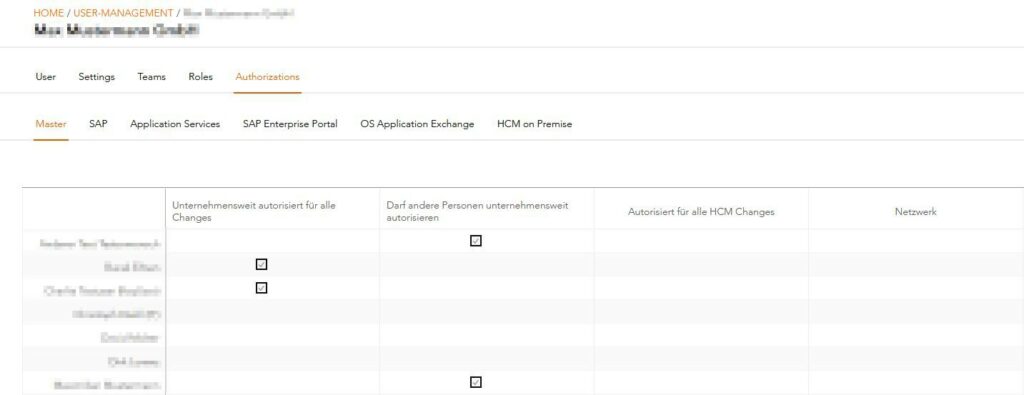
f you are registered as a customer administrator, you can maintain general data (such as e-mail etc.), make settings, manage teams, assign roles, manage authorizations and also block users (if they have left the company, for example).
Directly within the tile „User Management“ you will find a tabular list of existing users and by switching tabs you can directly get a matrix-based overview of existing users and their settings / team assignments / roles / authorizations.
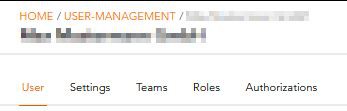
In the tab „Users“ you can directly access the user data by clicking on the desired entry.
Via the button

button in the upper right corner switches to the edit mode and allows you to customize each area individually. A direct jump to the individual areas to be changed can be achieved by clicking the specific „Edit“ button directly in the area (e.g. teams).
Note: the images shown below are examples only. The selectable settings / roles / authorizations may differ from the images shown.
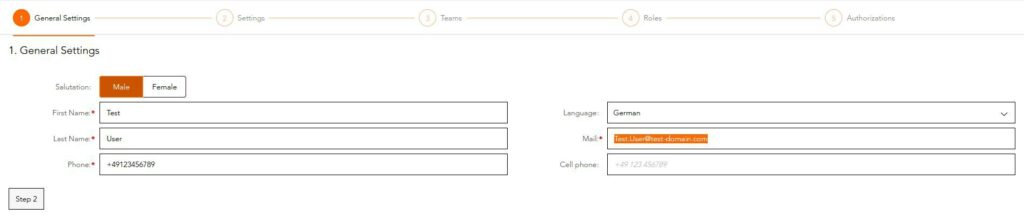
In step 1 you can edit the general data (e.g. e-mail, phone number, etc.).
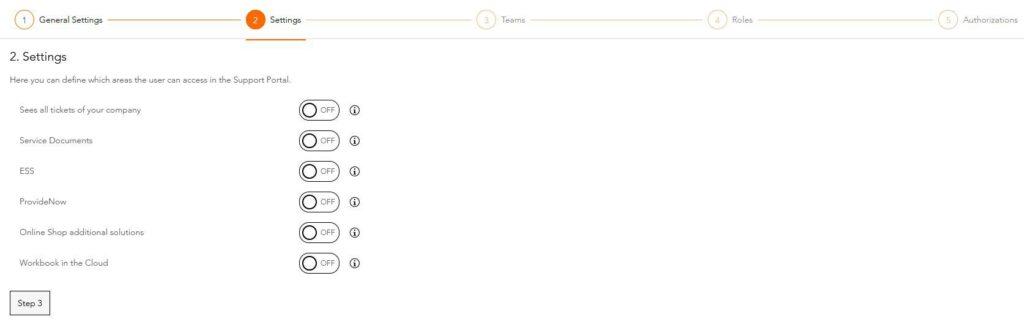
In the second step, the user’s settings determine which areas of the service portal the user can access.
In the next step specific teams can be created and assigned to the user. These teams can be used to group users and can be used for granular control of ticket access within this team.

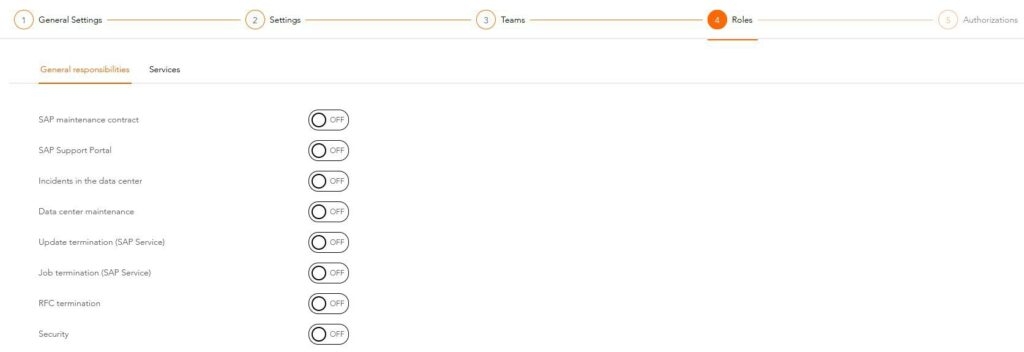
The 4th step is to assign specific roles to the user. These roles define for which topics the user is available as contact person. The assignment of the roles can be defined in general or directly on service level (e.g. if an employee is only responsible for the disruption of certain services).
In the 5th and last step you define the authorizations of the user.
When an incoming request/ticket (change or service request) is received, the All for One Group checks it against the existing authorization list. In case of e.g. an unauthorized request, it will be sent back to the requester, so that he has to have it approved by an authorized person.
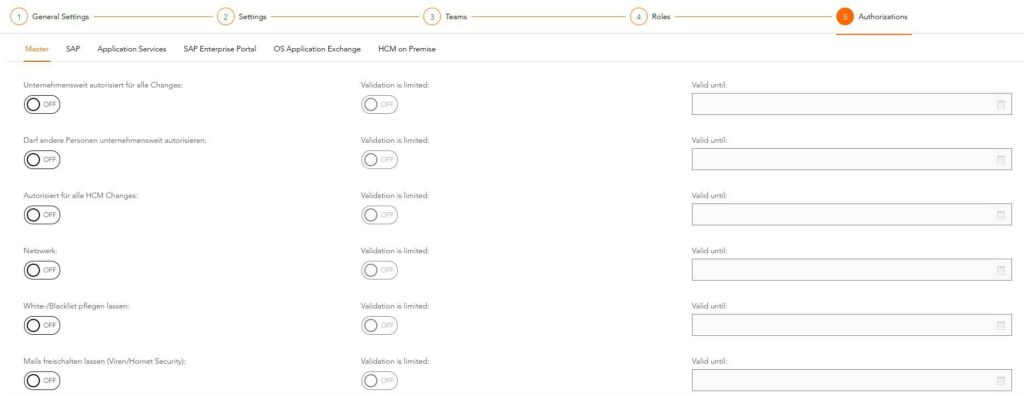
Here you will find the various subject areas for which changes or service requests can be initiated with us. When activating the authorization, a time limit for this authorization can also be set here if required. Important to know: Persons who have selected „May authorize other persons company-wide“ in the master can use the agent view of the authorizations and are simultaneously authorized for all changes within your company.
As soon as all data is up-to-date or the assignments of settings, roles and team assignments have been set, please click on the
 to save (or cancel if required).
Note:
S-Users can only change the General Data via the user profile in SAP Launchpad.
After selecting a user via the tabular listing, you will also find the option to lock the user. Via the button
in the upper right corner the user is blocked accordingly and cannot log in to our service portal afterwards.
A new user can be added using
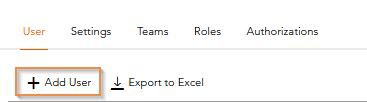
can be created.
Note:
Changing first name/last name is not available as a self service.
For a change, please contact our support.
Contact Person:
„SAP Maintenance Contract“ contact:

We will contact the contact person defined at this point for general SAP maintenance topics; this is the person responsible for SAP at the customer.
„SAP Support Portal“ contact:

This person will be contacted for technical questions regarding the SAP user (S-User) or the SAP Support Portal.
Data center maintenance:

We proactively inform the main contact person stored here about upcoming maintenance work. The information is provided via tickets, where he or she is stored as the reporting party.
All other persons with this assignment are placed in CC and also informed by e-mail.
Incidents in the data center:

We proactively notify the main contact person stored here of any operational incidents. The information is provided via tickets, where he or she is stored as the reporting party.
All other registered persons are placed in CC and also informed by e-mail.
Update termination:

Update terminations can be monitored in SAP systems. The main contact person defined here is proactively informed by the All for One Group about update terminations. The information is provided via tickets, where he or she is stored as the reporting party.
All other persons with this role are placed in CC and also informed by e-mail.
Job termination:

Job terminations can be monitored in SAP systems. The All for One Group proactively informs the main contact person stored here about job terminations. The information is provided via tickets, where he or she is stored as the reporting party.
All other persons with this assignment are placed in CC and also informed by e-mail.
RFC termination:

In SAP systems, RFC aborts can be monitored. The main contact person stored here is proactively informed about RFC aborts by the All for One Group. The information is provided via tickets, where he or she is stored as the reporting party.
All other persons entered are set in CC and also informed by e-mail.
Security:

If a ticket is assigned to a security class, this partner will be informed by email.
Overview / Administration of authorizations
For better display and easier management of authorizations, you can jump to a matrix-based view in the user administration via the „Authorizations“ tab. Provided you are authorized, you can edit the authorizations accordingly.