
With this App you can create a new ticket.
Mandatory information
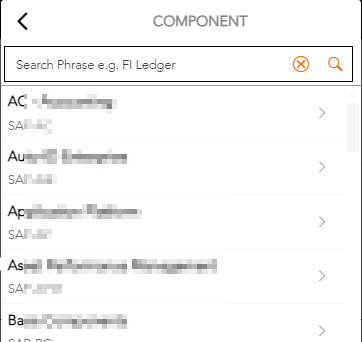
Component:
Please select the type of incident / request here.
- Incident (INC) Incident: An unplanned interruption or reduction in quality of an IT service or an event that could affect an IT service in the future.
- Change/Service Request (CHG/SRQ) Change: Adding, modifying or removing an item that could impact IT services.
Service Request: A formal request from a user, e.g. for information, advice, resetting a password or installing a workstation for a new user.
After selecting the category for your ticket, use the displayed list displayed to select the purchased product/service for which you want to create a ticket. Only products you have purchased will be displayed
choose:
- Application Services = all SAP and Microsoft Application services
- Outsourcing / Remote Services = all Data Centre services
- SAP Maintenance/ SAP Application = all topics regarding SAP Maintenance or general enquiries in the SAP context
- Add.Solutions SAP = all requests regarding the All for One Products, e.g. KEP or Invoice cockpit
- HCM = all service contracts with empleox GmbH
- Cloud Solutions Application Management = all cloud services with All for One CX, All for One Cloud ERP or All for One Group SE incl. Rise ONE
- avantum Business Analytics = all service contracts with avantum GmbH
- Microsoft O365 = all contracts regarding Microsoft M365 services
- Service Portal / Service Management = Requests for All for One Service Portal or a request to Service Management or your Service Manager
After selecting the purchased product/service, further levels are displayed to categorise the ticket or your request. Select the level that best suits the issue. The search function will help you.
System/Service:
At this point, please select the affected system or service. The selection changes depending on the selected component (e.g. OUT / SAP)
Title:
Give the ticket a meaningful title
Description:
Please describe your concern / your incident in detail here.
Priority:
Select the appropriate priority for your incident / request.
Priority 1: Very high -> for production systems
An important business process cannot be executed. This can be a production shutdown or the failure of a core business process.
Prio 2: High -> for all systems
An important business process is severely impaired. Necessary key activities cannot be performed. A much-needed function is temporarily unavailable or does not function properly.
Priority 3: Medium -> All Systems
Any other business process is impaired. Necessary activities cannot be carried out. A required function is temporarily unavailable or does not function properly.
Prio 4: Low -> All systems
No business process is affected. A function not required for daily business is temporarily unavailable or does not function properly.
Optional
Substitute:
Use the button
to define your colleagues as substitutes for this ticket. This gives colleagues the opportunity to view, reply to or quit the ticket. The registered representative is only valid for the current ticket.
The entered representatives can be adjusted via the „My Tickets“ tile after the ticket has been created.
Attachment:
You can add attachments using Drag & Drop or the button
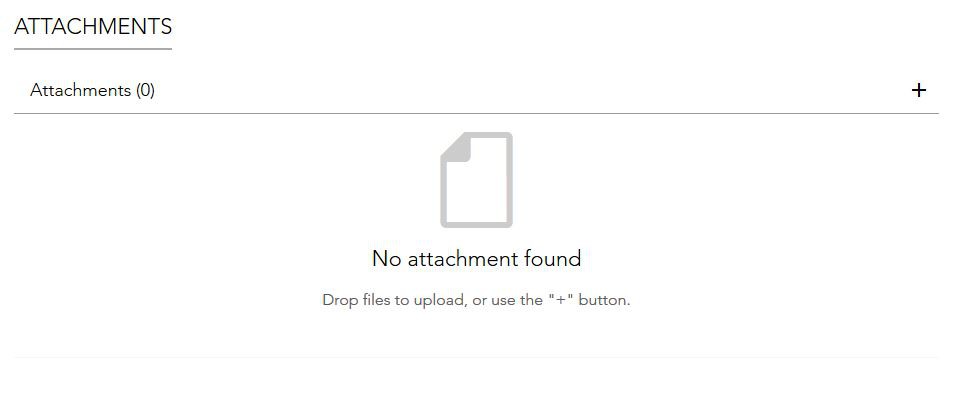
at this point.
Template:
By checking the box

it is possible to save the entered data as a template.
The following entries will be adopted:
Component
System/Service
Title
Description
Priority
You can select an individual name for each saved template. If no description is entered, the ticket title will be taken over.
Depending on your selection
Safety classification:
If it is an incident in the outsourcing/remote service area, one of the following security classes can be selected:
Not security relevant
Prolapse
Suspicion
Threat
For a more detailed explanation of the individual points, please refer to the information symbol

behind the field.