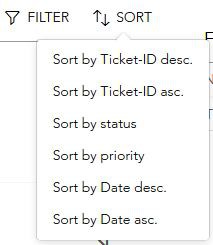
Using the „My Tickets“ app, you can search in all tickets that are visible to you.

The search is filtered for open tickets by default. If you want to search for a ticket that has already been acknowledged, the filter must first be extended by the respective status:
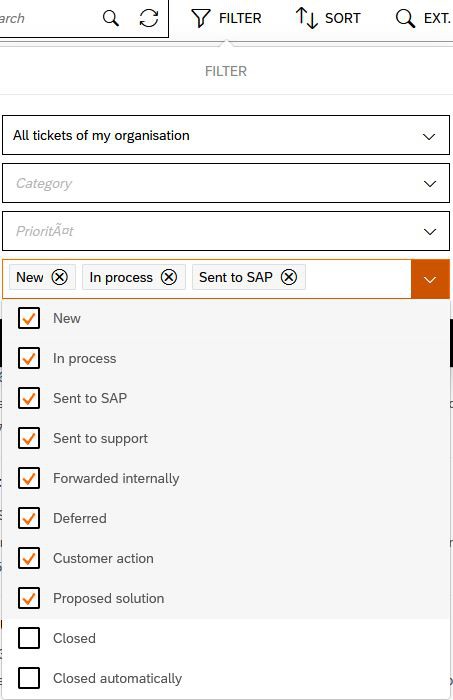
The following search options are available in order to navigate easily and efficiently to the desired ticket within the search:
Description:
It is possible to search for a keyword from the description or the ticket title.
Ticket ID:
By directly and completely entering a ticket number, you can immediately access the ticket you are looking for.
Status:
This option allows you to search for all tickets with the same status.
Priority:
You can search for a priority using one of the four priorities.
Ext. number:
If there is an external number (e.g. the ticket number of your connected ticket system) for the ticket you are looking for, you can enter it here.
All tickets of my organization:
If you have the appropriate permissions, you can use the filter button to switch between „My tickets“ and „Tickets of my organization“.
Extended Ticket Search
So that you can design the search according to your own specifications, there is the possibility to use the advanced search.

After you have jumped to the advanced search, you will find some predefined filter options. You can find more search criteria by clicking the Filter button.

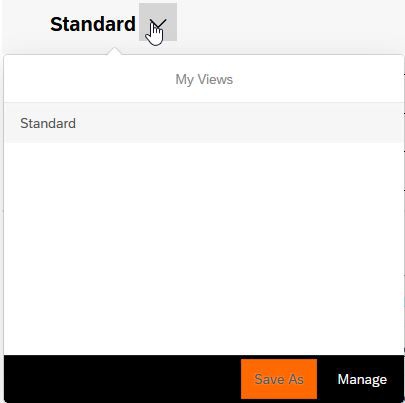
If required, you can also save the search with the set filters. Click on „Standard“ to open the defined views. There you will also find the option to save a search or manage saved searches:
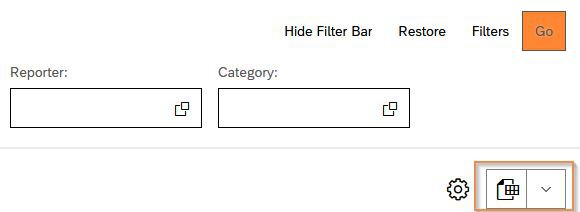
You can also export the displayed results as an Excel file at any time.
Sort
To make the search more clearly arranged, the search result can be sorted using the button