
1. Overview
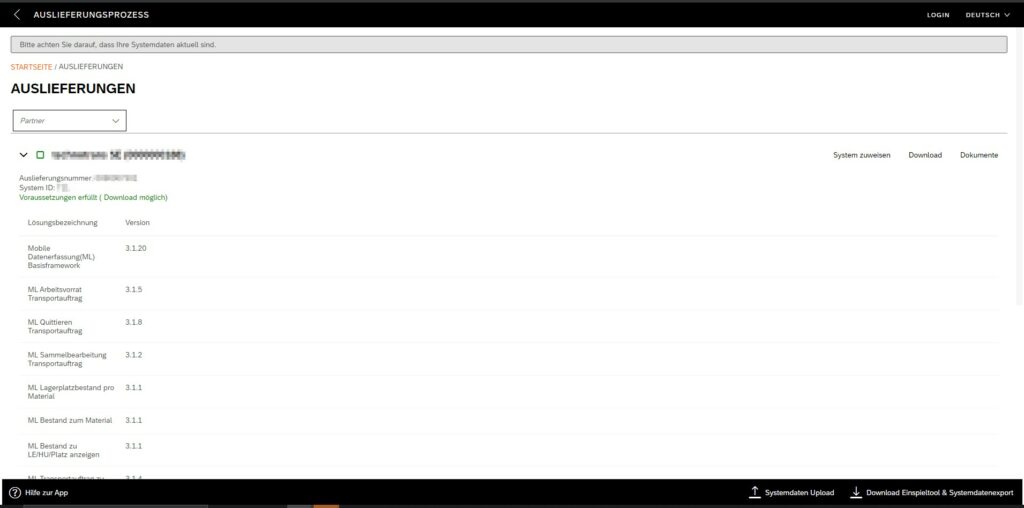
[1] Choose „Delivery“. The app shows all solutions purchased by your company.
2. Download import tool and export of system data
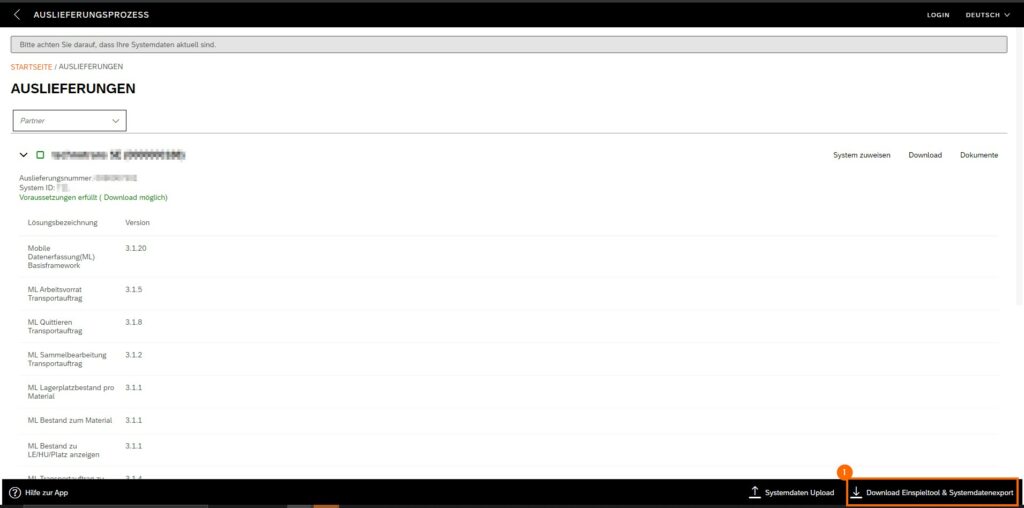
(1) Click Download import tool & system data export
You will now receive a download with the corresponding transports.

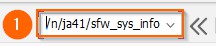
The transports also contain transaction /n/ja41/sfw_sys_info, which you need to create the system data file.
If you need assistance with importing the transports, please contact our support.
3. Creating a File of System Data
If you cannot assign the corresponding system to a solution, or if the system information is obsolete, you must define new ones. You create a new system data export in the following steps.
Important:
The system data export must be generated from the first system in a system landscape.
In most cases, this is the development system.

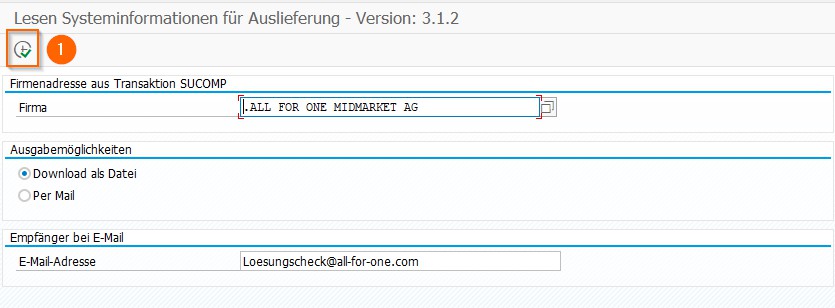
(1) Enter /n/ja41/sfw_sys_info in the field.
Your company is stored in the field „Company“.
(1) Click Execute.
(1) Click Save.
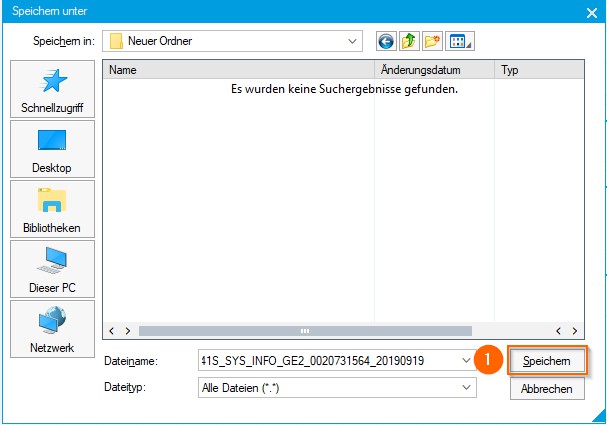
The file has been saved in your download directory.
4. Importing system data
To be able to select the exported system data, they can be uploaded via the app „delivery of solutions“ or „activeservice“.
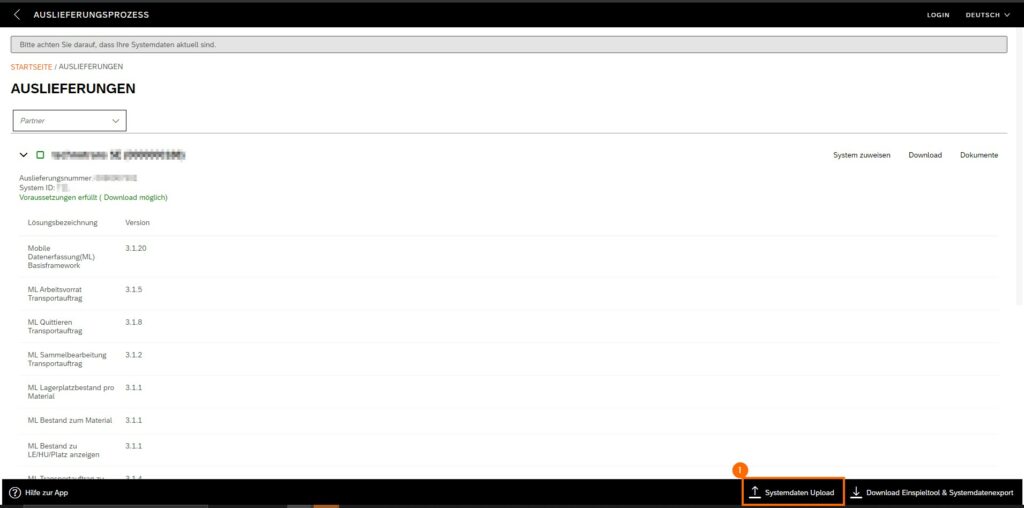
(1) Click System data upload.
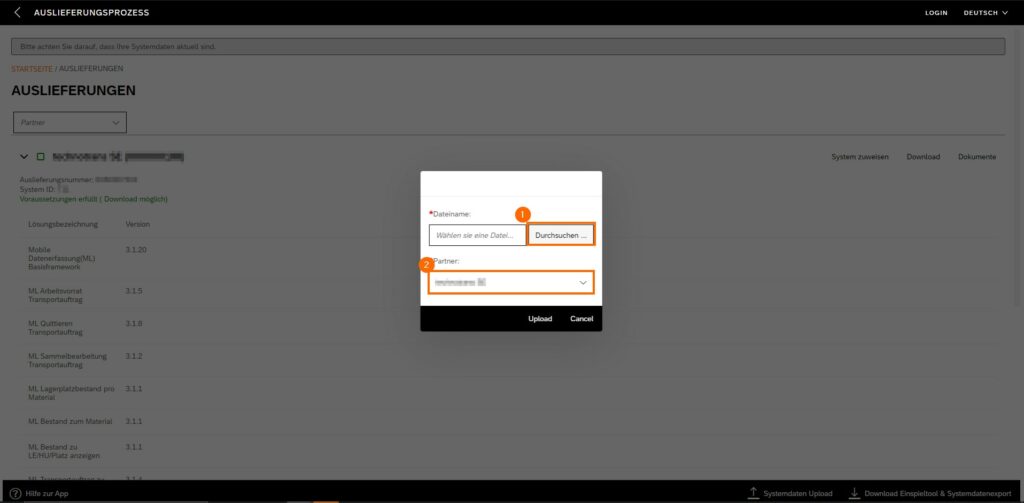
(1) Click Browse.
(2) Choose a partner.
After the successful import, you can now assign your system to a solution.
5. Assigning System Data
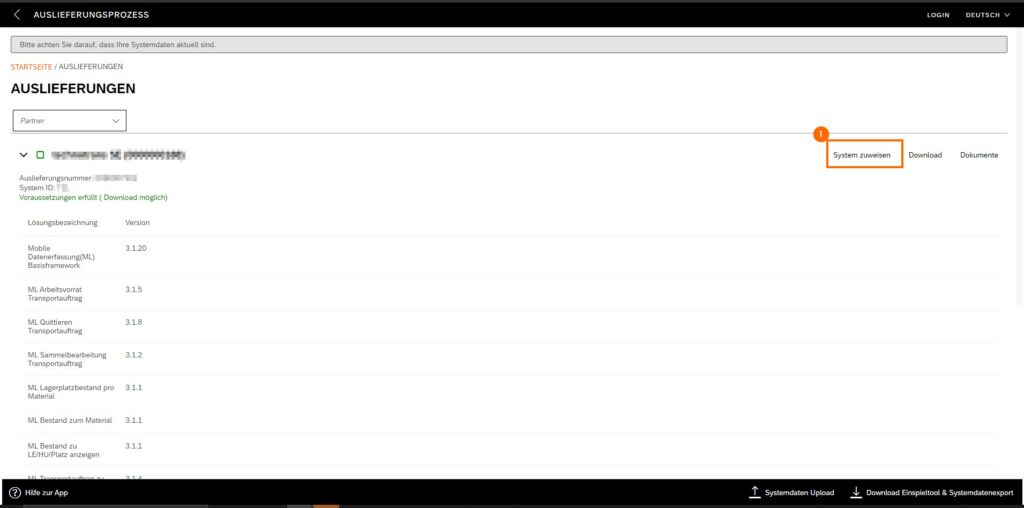
(1) Click Assign System.
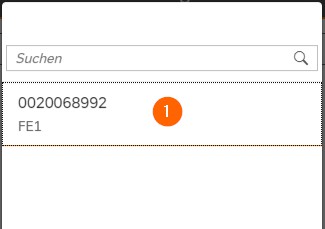
(1) Click Your system.
Important:
Your systems appear in the selection list. If your system does not exist there, you must import the system data.
If the system requirements are correct, you can download the solution.
6. Download solution
If the system requirements are met, you can download the solution.
Important:
Be sure to keep your system data up-to-date. (Example: After a release upgrade, you should update it by importing it again)
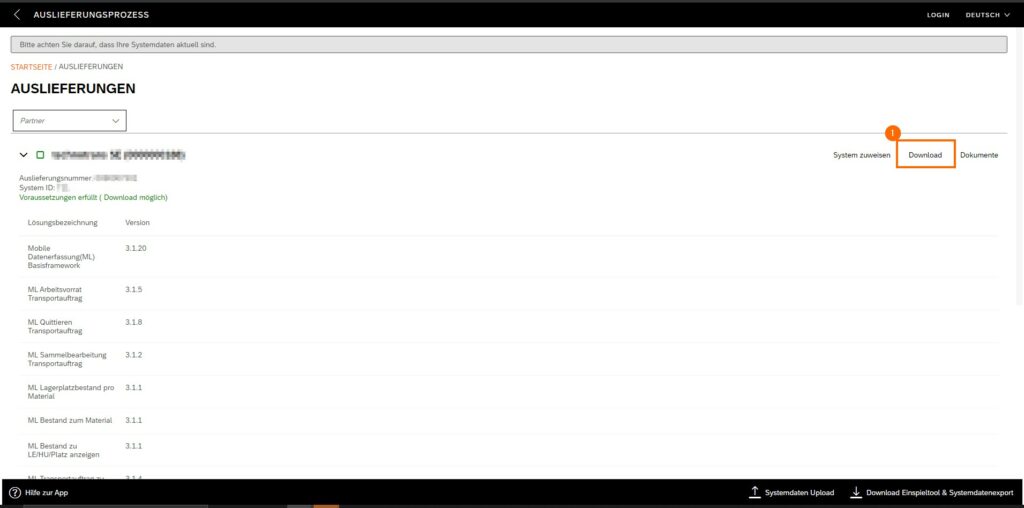
(1) Click Download.
You will now receive a file which you can import into your system with the import tool.
The file is saved in your browser’s default download folder.
When you cannot download a solution:
- You have not yet assigned a system to the solution.
- The system does not meet the minimum requirements of the solution (Example: Your system has release 7.00 but requires at least 7.02 15)
- The system is not suitable for the solution (Example: A GTS solution can only be used for one GTS system).
7. Importing the Solution
Important:
Please perform the following steps on your development system.
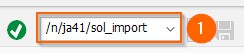
(1) Enter /n/ja41/sol_import in the transaction field
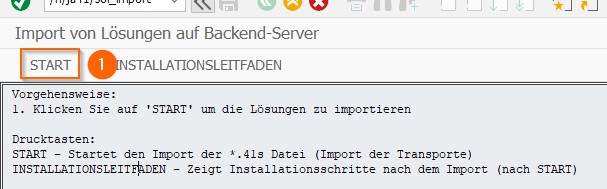
(1) Click START.
Import imports the corresponding transports into your system.
If you have several clients to choose from for the import, you can now select the relevant one.
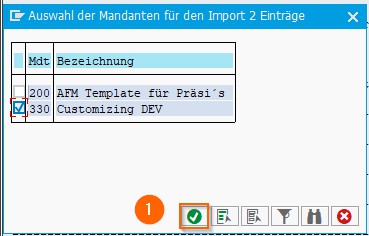
(1) Click Apply
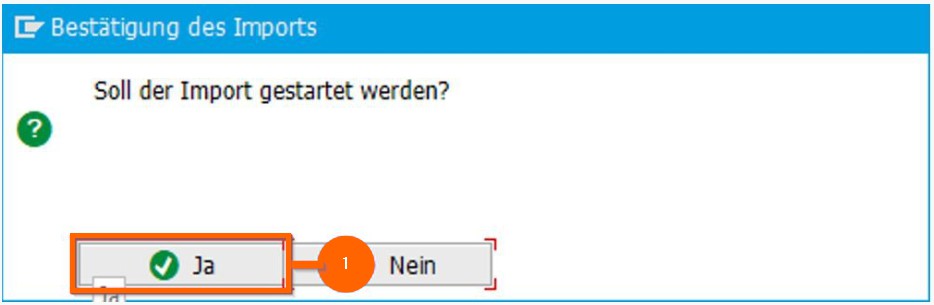
(1) Click Yes.
The import is now performed.
You will then receive further information
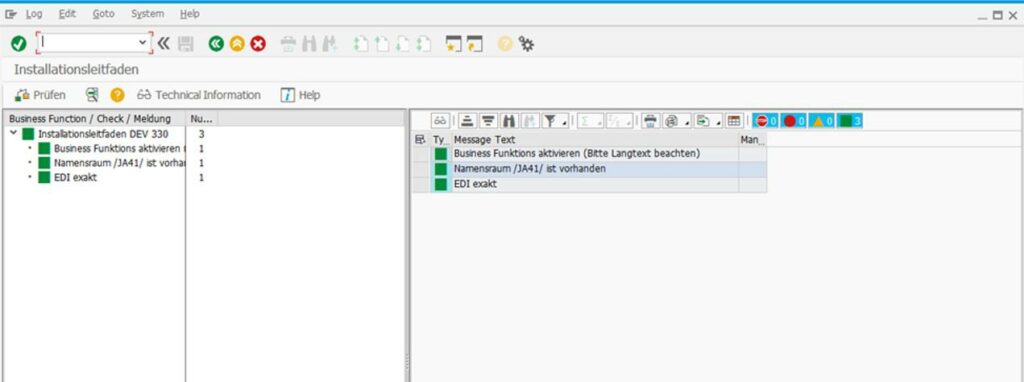
Optionally, you can now branch to the installation guide for configuring the solution.
However, not all solutions currently support this feature.

(1) Click on Installation Guide
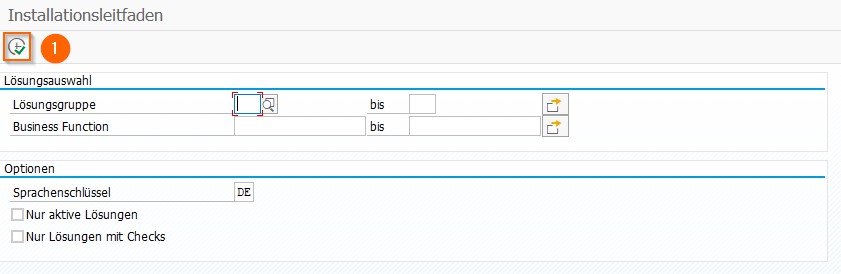
(1) Click Execute.
8. Forwarding of solutions to subsequent systems
To forward the solution to subsequent systems, use the SAP standard transaction STMS or use the following dokumentation https://fiori-help.all-for-one.com/kapitel/7.3.
9. Update importtool
If there is an update of the import tool, the new version of the import tool is included in the delivery file. To install the new version, start the import tool, select the new delivery file and start the import. A popup appears for updating the import tool.