
10.4.1 Software subscriptions
10.4.2 Order Software Subscriptions
10.4.3 Cancel software subscriptions
10.4.4 View software subscriptions
10.4.5 Retrieve software license key
10.4.1. Software subscriptions
In addition to the M365 subscriptions, you have the option of taking out software subscriptions, which allow you to license Windows Server, SQL Server and Windows 10.
The following subscriptions are currently available:
Software subscriptions
- SQL Server (Standard/ Enterprise)
- Windows Server (Device CAL/ User CAL)
- Windows Server Remote Desktop (User CAL)
- Windows Server RMS (Device CAL/ User CAL)
- Windows Server Standard (8 Core Pack)
10.4.2 Order software subscriptions
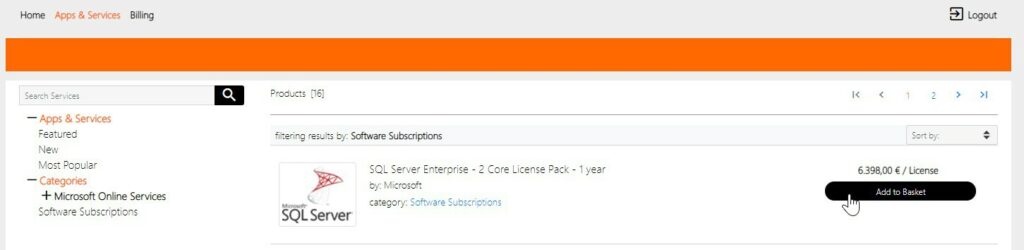
To order software subscriptions click on the category Software Subscriptions.
Select the desired subscription by clicking on „Add to Basket“.
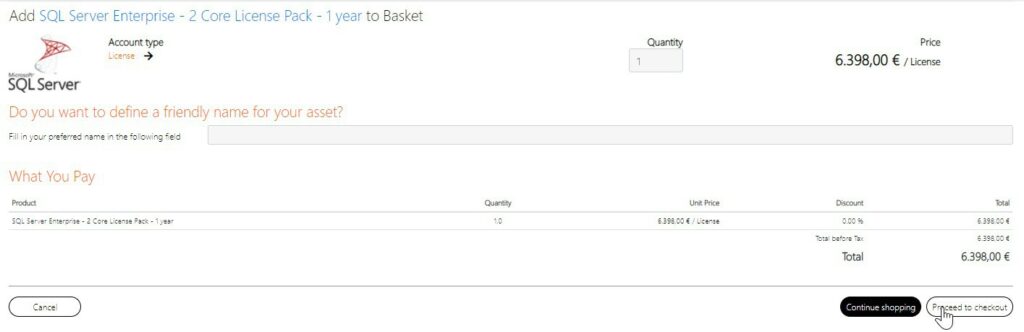
You can see your basket now. Now you have the possibility to specify how many licenses you want to order.
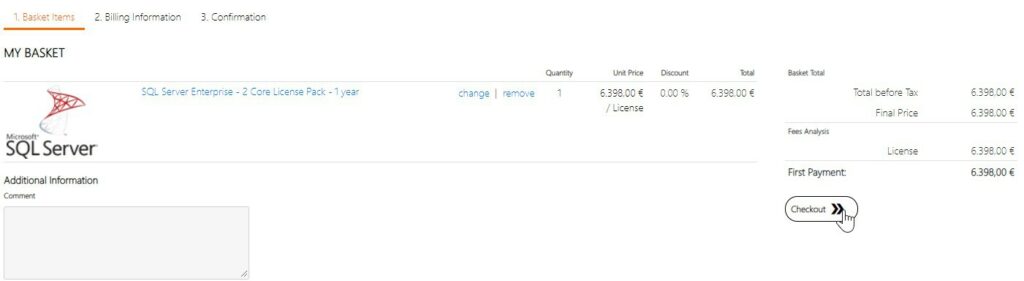
In the checkout process you have the possibility to validate your order again. If your order is OK, you can click on „Checkout“.
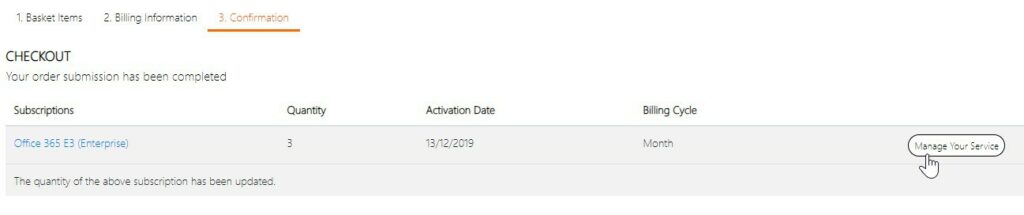
After you have gone through the checkout process, your license will be provisioned. Click on „Manage your Service“ to manage your software license.
10.4.3 Cancel Software Subscriptions
Since software subscriptions are one-time purchases (no recurring invoice), a cancellation of the license is not necessary. The license is terminated upon expiration of the license.
You can view the expiry date as follows:
10.4.4View Software Subscriptions
10.4.4 View Software Subscriptions
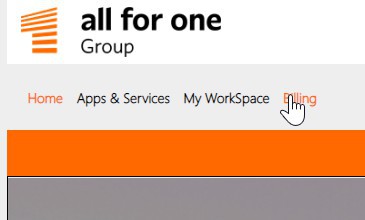
To view software subscriptions, click on Billing.
Now you have the possibility to click on Assets -> Active Licenses.
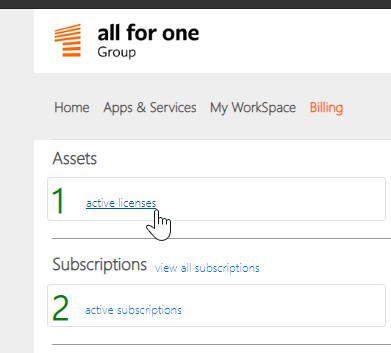
Here you can see all your software subscriptions. To find out the corresponding expiry date, click on the corresponding subscription. Since Microsoft does not provide the license keys via the API, the License Key field is empty. To get your keys, click here.

After you click on the subscription, you will see the expiration date in the Software Expiration Date field.

10.4.5 Retrieve software license key
Log in to your Microsoft 365 Admin Center.
Click on Billing -> Products and Services
Click on Software and select the appropriate software.
Now you can download the ISOs and copy the license key to your software subscription.